

- Messages
- 19,274
- Reaction score
- 8,870
There seems some confusion of embedding images into posts on this board, so here's a quick demo of how to.
I might of confused it a little, by adding another image embed bbcode, but taken that off now.
To embed into a post via a URL (photobucket, google, etc)
Click the 2nd box along to the right of the emoticon/smilie box.

A pop-up appears to paste in the URL of the image, paste that in there.

Ok on that button, will put that image into the post, you can move it down if you want to add text above, etc
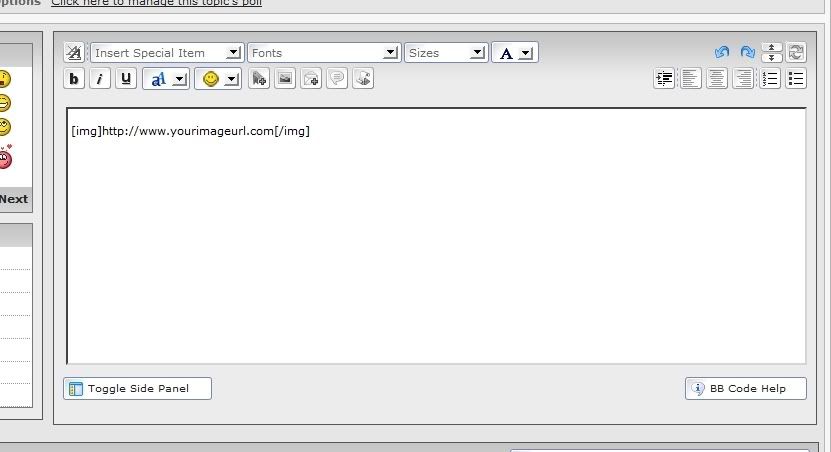
You can hit the preview button below before posting your post/image to make sure it's there.

To embed into a post via uploading to The Shed End
You can also add your picture direct to the site, but be aware that we have a total upload limit set on this, so over time some older attachment images will be deleted.
To embed via uploading here, hit the bowse button under the posting screen, then select the image on your computer to upload. Once that appears in the box beside the Browse, hit the Green upload button.

Once this has uploaded, the number of uploaded images will appear in the dropdown above upload, click that arrow on dropdown, and click on the text of the picture.

Once the filename has been clicked (there are extra optional icons beside the filename), the attachment will appear on the posting screen.
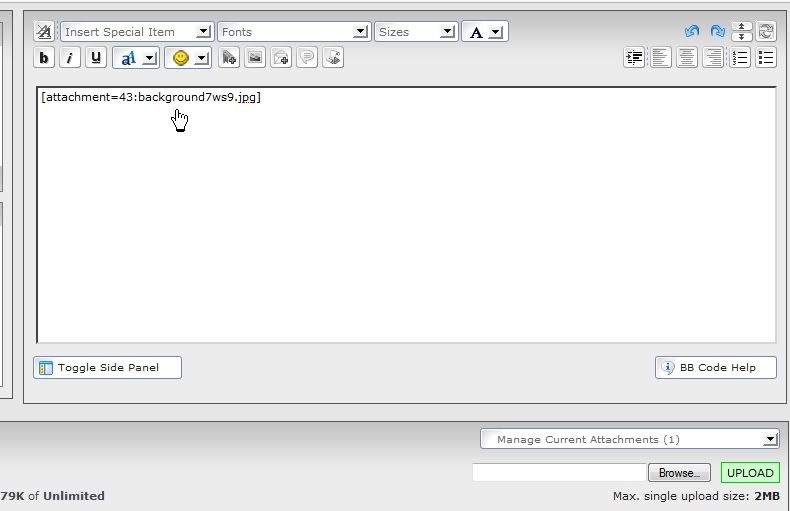
Again, you can move this line down if you want to post text above, but keep that line(s) intact.
Hit preview to see, and post to submit.
I might of confused it a little, by adding another image embed bbcode, but taken that off now.
To embed into a post via a URL (photobucket, google, etc)
Click the 2nd box along to the right of the emoticon/smilie box.
A pop-up appears to paste in the URL of the image, paste that in there.
Ok on that button, will put that image into the post, you can move it down if you want to add text above, etc
You can hit the preview button below before posting your post/image to make sure it's there.
To embed into a post via uploading to The Shed End
You can also add your picture direct to the site, but be aware that we have a total upload limit set on this, so over time some older attachment images will be deleted.
To embed via uploading here, hit the bowse button under the posting screen, then select the image on your computer to upload. Once that appears in the box beside the Browse, hit the Green upload button.
Once this has uploaded, the number of uploaded images will appear in the dropdown above upload, click that arrow on dropdown, and click on the text of the picture.
Once the filename has been clicked (there are extra optional icons beside the filename), the attachment will appear on the posting screen.
Again, you can move this line down if you want to post text above, but keep that line(s) intact.
Hit preview to see, and post to submit.
